Define segments and expectations
Create segments and expectations to tell Monitor what good structured data looks like on each kind of page. A segment is a named cluster of related URLs, such as Blog, Homepage or Product. An expectation is a rule about the structured data a page must or should carry.
Expectations attach to a segment and run against every URL that segment matches. This lets you hold an article to a different standard than a product page.
Prerequisites
- You have access to the Knowledge Graph in the WordLift dashboard.
- WordLift has set up the pages to monitor for your account (see Monitor).
Create a segment
-
Select your Knowledge Graph, then select Monitor > Segments.
-
Select + New.
caution+ New creates the segment immediately, without a dialog to cancel. If you create one by mistake, delete the empty segment with the trash icon in the segment header.
-
Enter a name and a description for the segment.
-
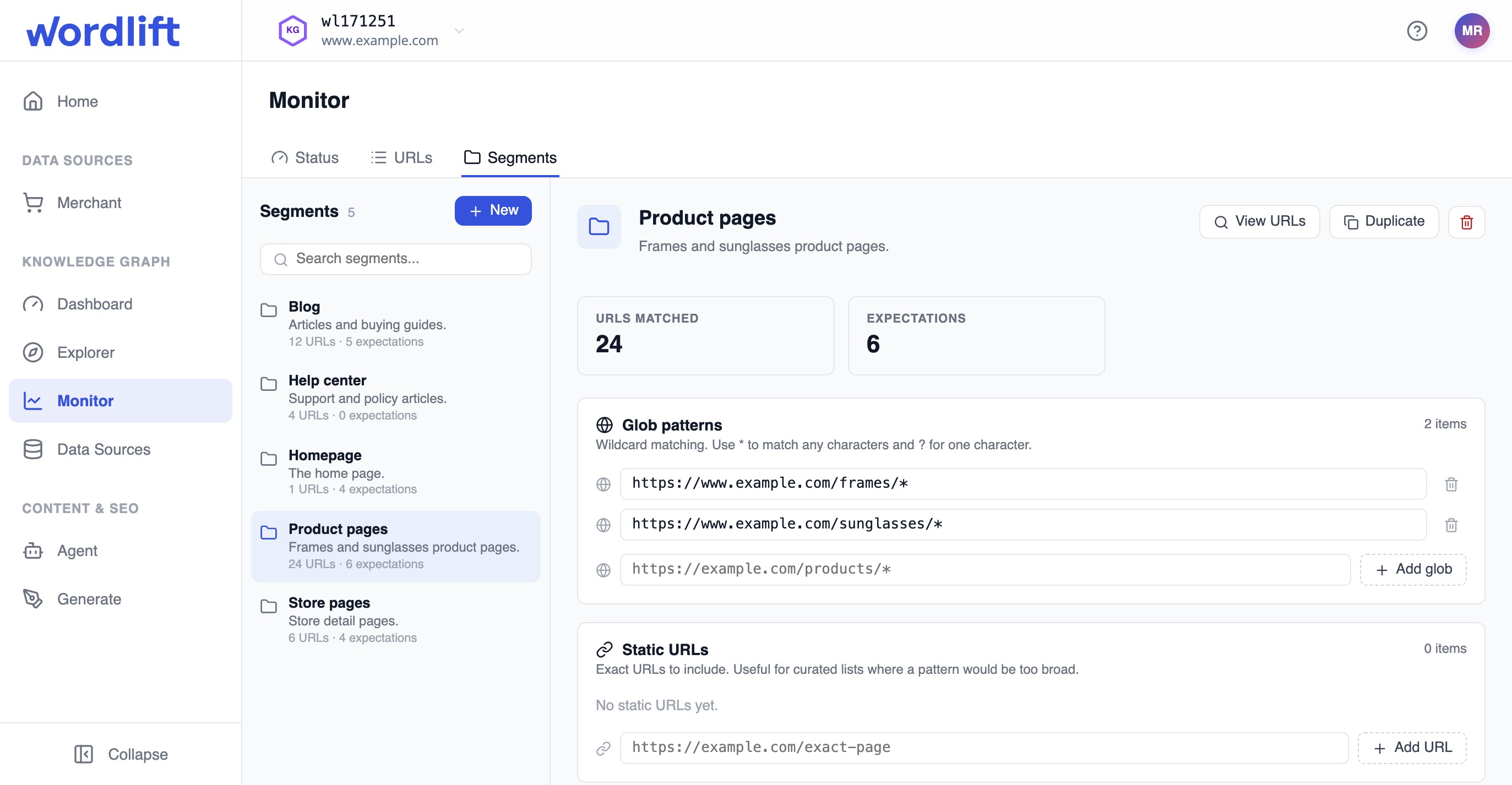
Add the URLs the segment should match. You can use both kinds of matcher in the same segment:
- Glob patterns match clusters that share a URL shape, for example
https://www.example.com/blog/*. - Static URLs match a curated set where a pattern would be too broad. A homepage segment, for example, is usually a few exact URLs and no patterns.
- Glob patterns match clusters that share a URL shape, for example
-
Check the segment header. It shows how many URLs the segment matches and how many expectations it has. Use it to confirm a pattern as soon as you write it.
The header also has 2 shortcuts. View URLs opens the URL list filtered to the segment. Duplicate copies the segment, which helps when 2 segments need similar standards.
Add expectations
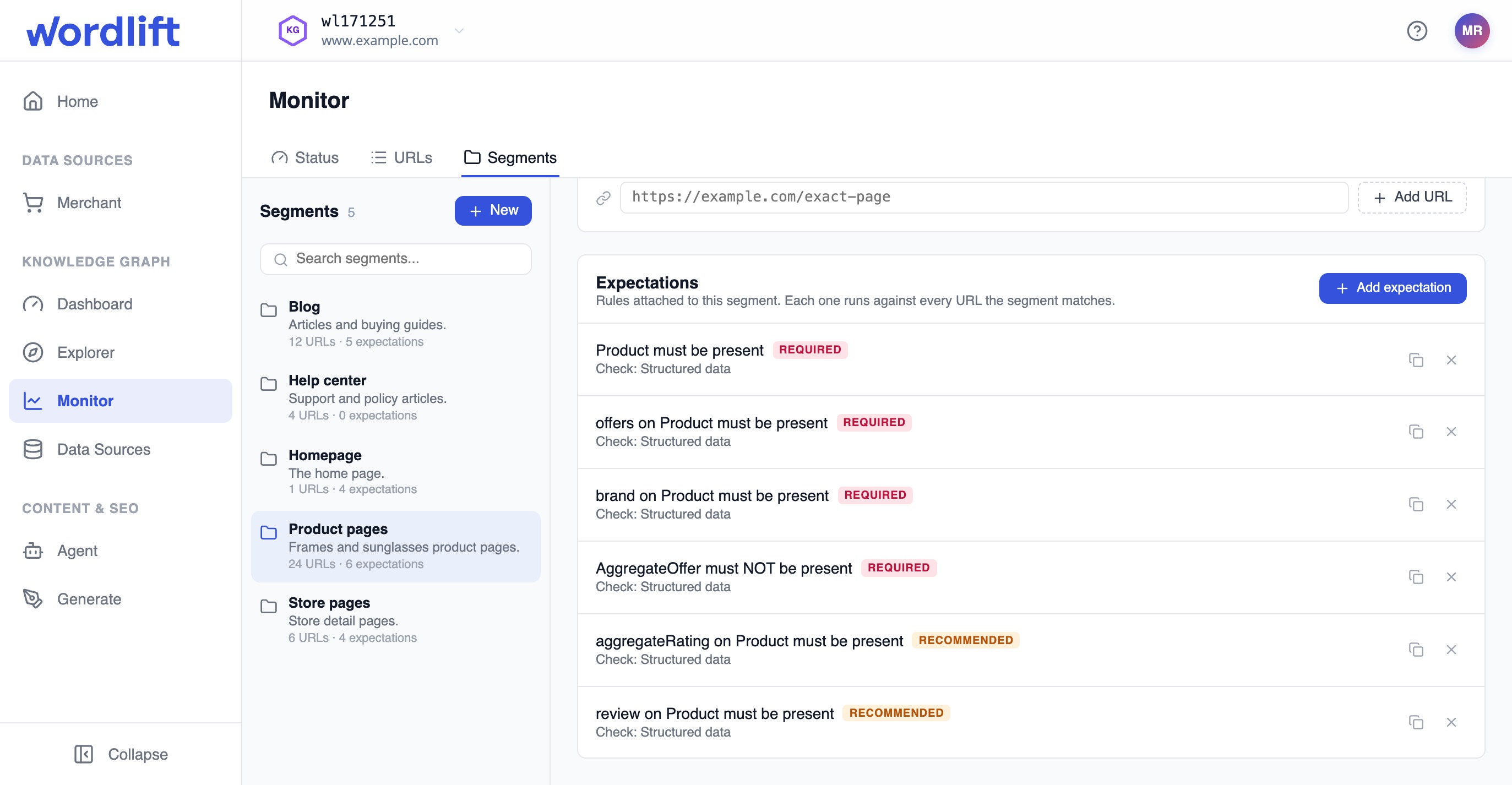
You define expectations at the bottom of the segment editor.
-
Select + Add expectation.
-
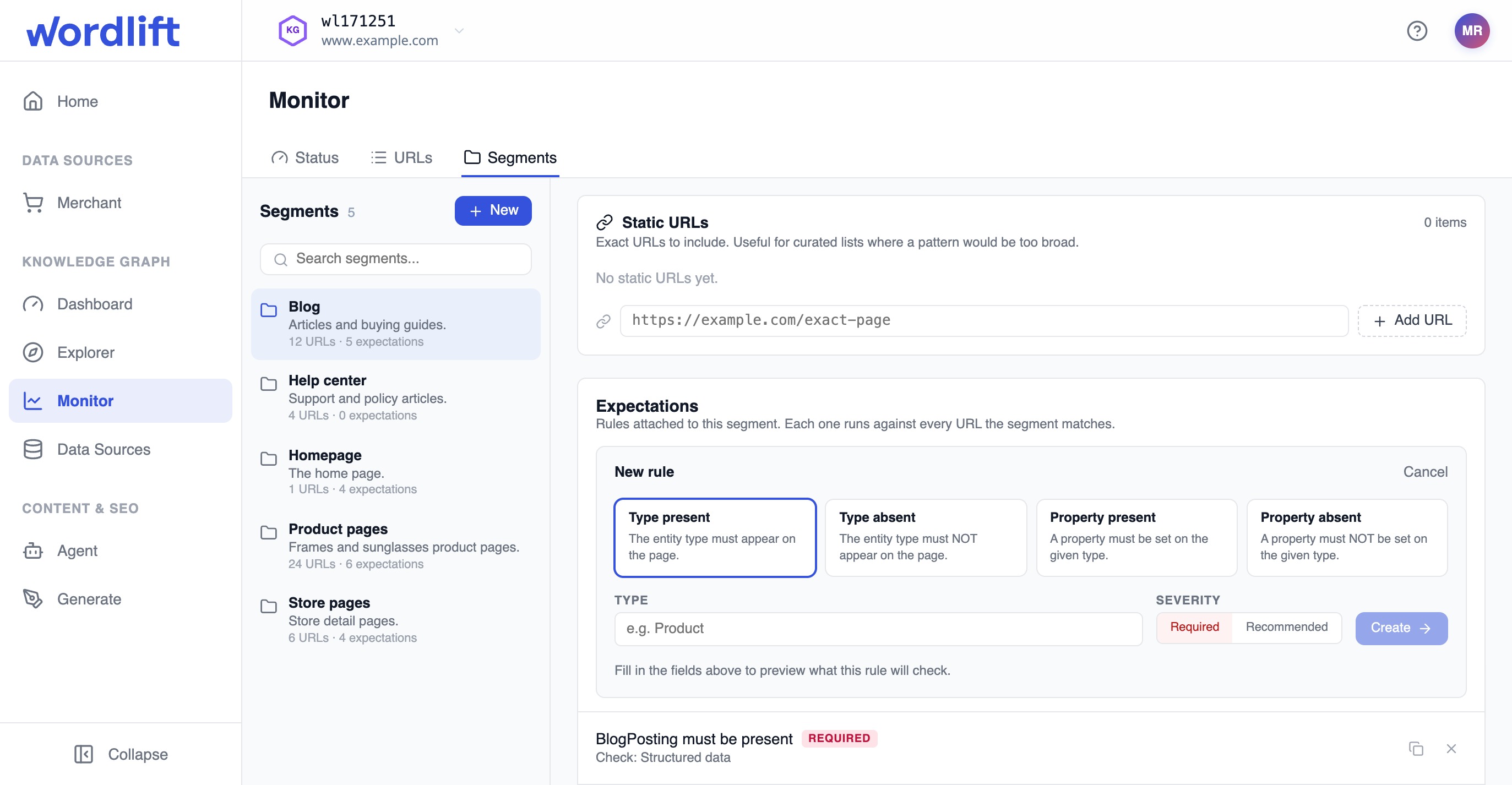
Choose a rule kind: Type present, Type absent, Property present or Property absent.
-
Enter the type. For property rules, also enter the property. Use dot notation for nested properties, for example
publisher.nameon aBlogPosting. -
Choose a severity:
- Required counts toward the semantic data quality score. Use it for the minimum every page must meet.
- Recommended affects the page status but not the score. Use it for a target you want to move toward without lowering the score today.
-
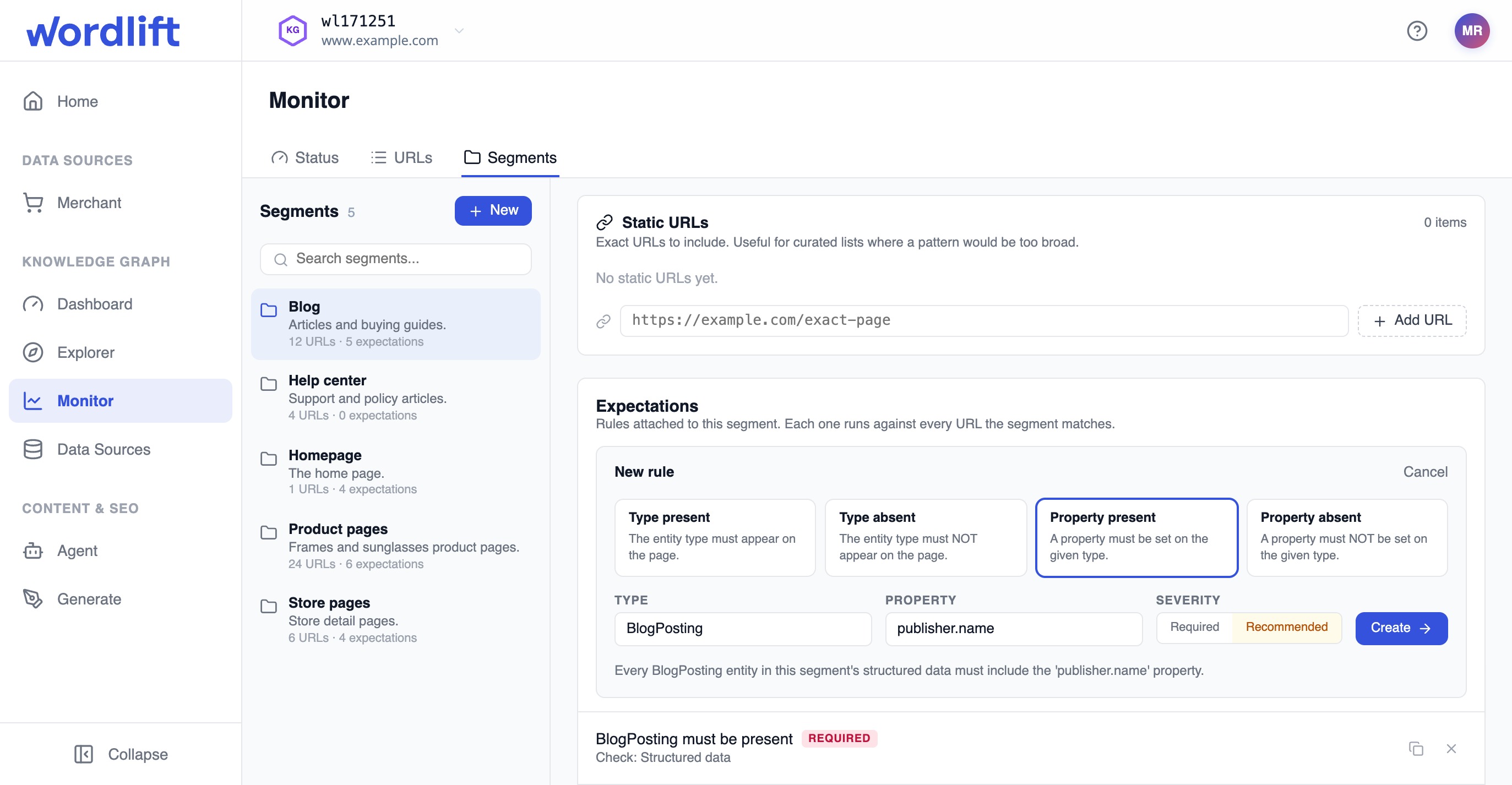
Read the plain-English preview below the fields. It updates as you type and shows whether the rule says what you mean.
-
Select Create.
A segment with no expectations matches pages but measures nothing. It does not contribute to the semantic data quality score.
For what each rule kind and severity means, see Expectations in the Monitor reference.
Result
The segment appears in Monitor > Segments with its URL count and expectation count.
Monitor evaluates the new expectations on the next scheduled run, normally within 24 hours. You can't start a run manually. On each run, Monitor reads the structured data on each page, runs the built-in checks, and evaluates the expectations of every segment the page matches.
To confirm that every page belongs to a segment, open Monitor > URLs and choose Unassigned URLs in the segment dropdown. The list shows pages that no segment matches.
Next steps
- Read Monitor status to see how each segment scores after the next run.
- Inspect URL results to see which rules a single page fails.