Inspect URL results
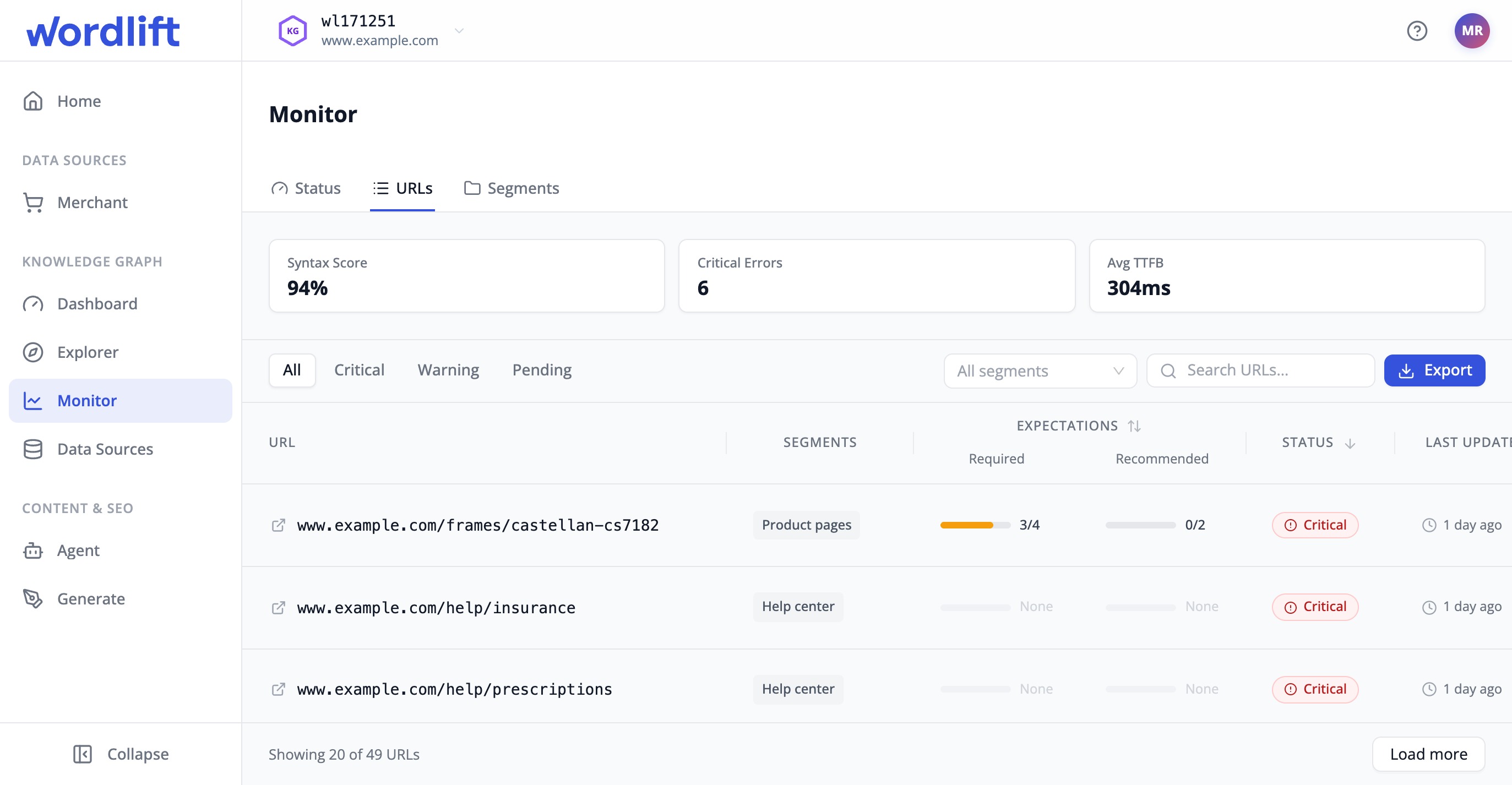
Use the URLs tab to find the pages that fail and see why. Each row shows the URL and its segments, then its Required and Recommended expectation pass counts. It also shows an overall status, the last scan time, a syntax score and timing figures.
Prerequisites
- You have access to the Knowledge Graph in the WordLift dashboard.
- At least 1 monitoring run has finished since WordLift set up your pages.
Find the pages
-
Select your Knowledge Graph, then select Monitor > URLs.
-
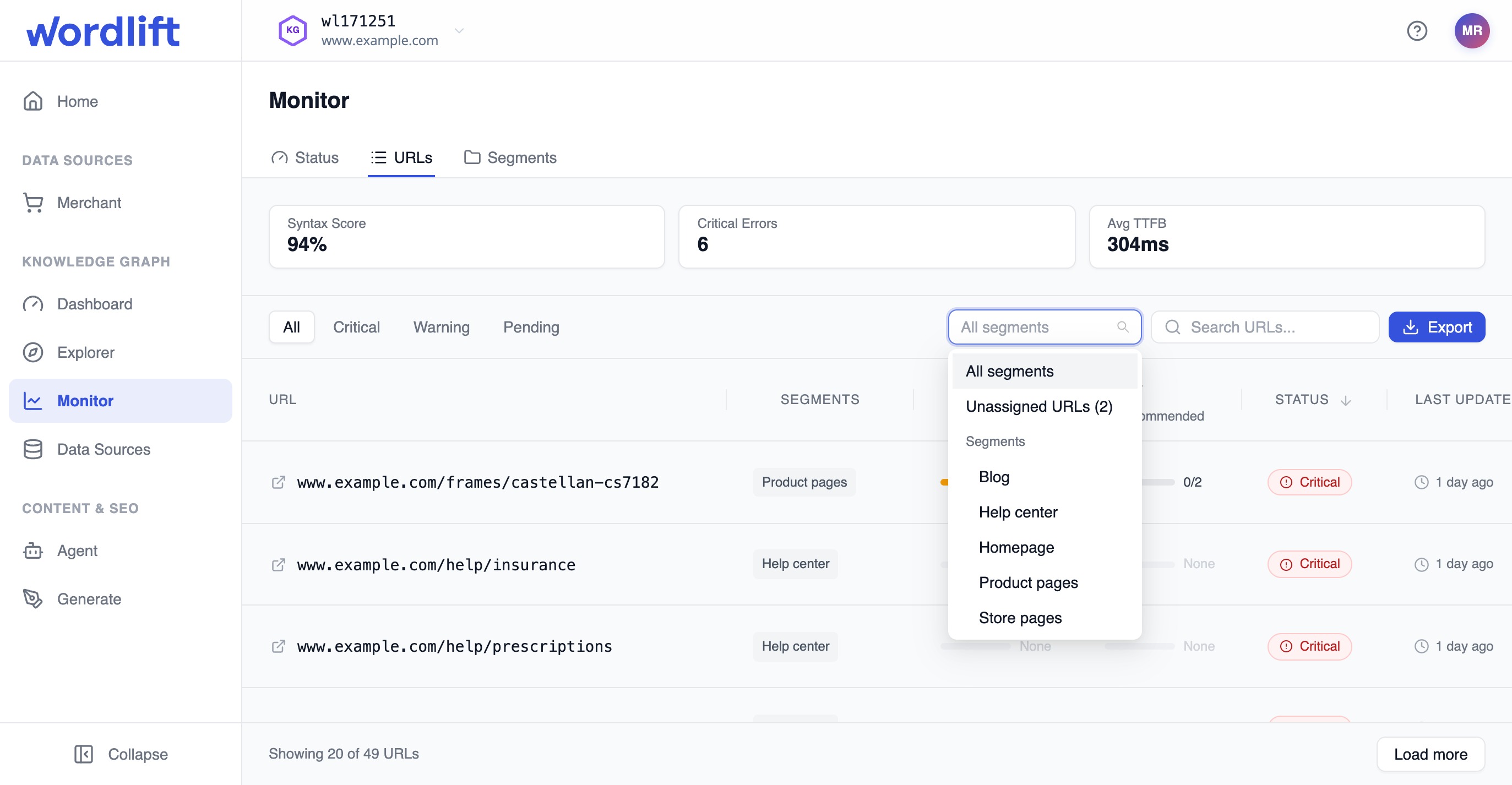
Narrow the list with any of these filters:
- Status filters show All, Critical, Warning or Pending pages.
- Segment dropdown shows one segment, or Unassigned URLs for pages that no segment matches.
- Search filters by URL.
-
Sort by the Expectations or Status column to bring the weakest pages to the top.
-
Select Load more to load the next batch, or Export to download the list.
Inspect a page
- Select a row, or select Inspect, to open the detail drawer.
- Use the icons on the left of the drawer to switch between its 4 panes:
-
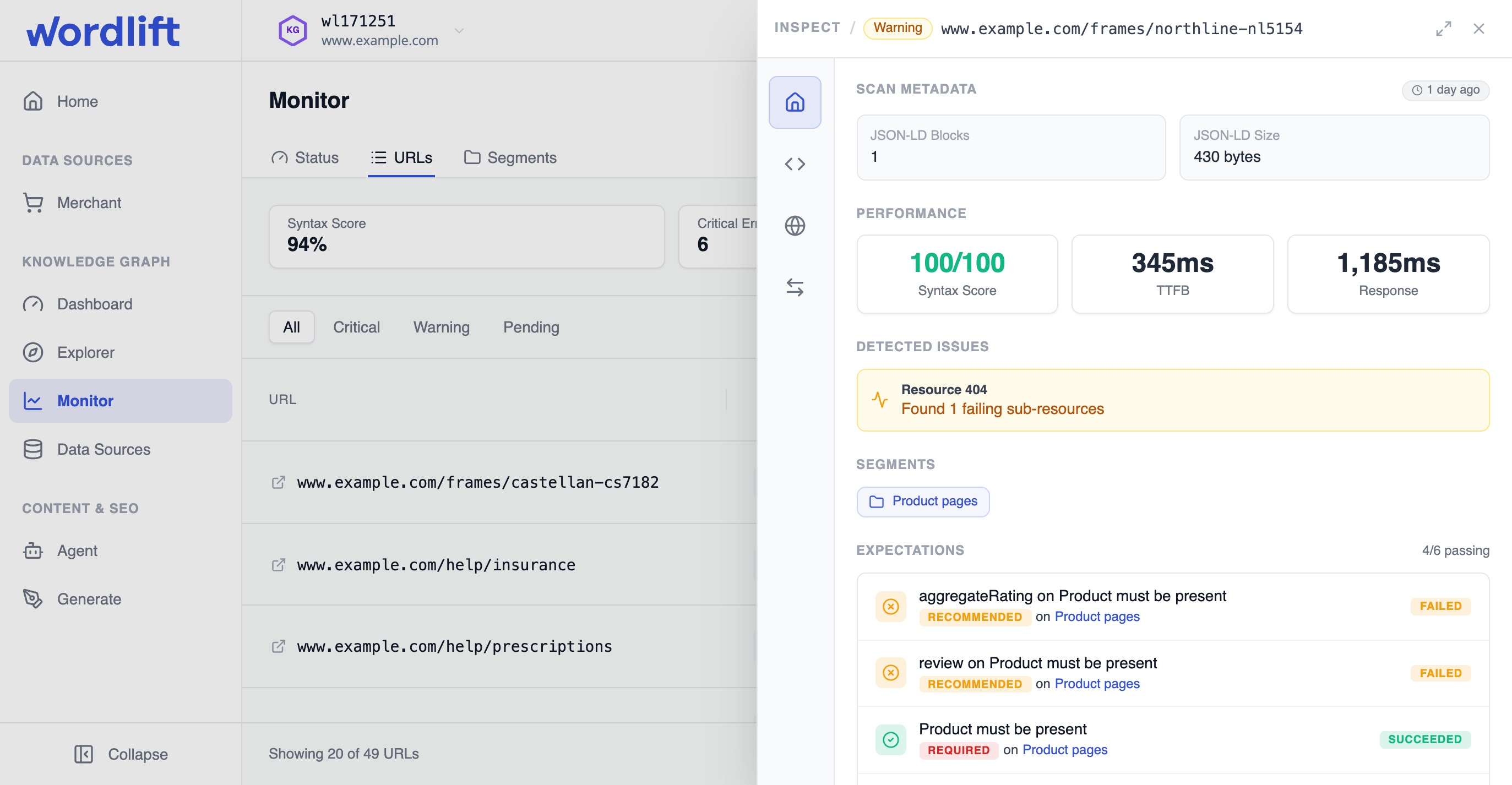
Overview shows scan metadata (the number and size of JSON-LD blocks), performance figures, detected issues and the segments the URL belongs to. It then lists every expectation with its result, severity and source segment, followed by the built-in checks for the page.
-
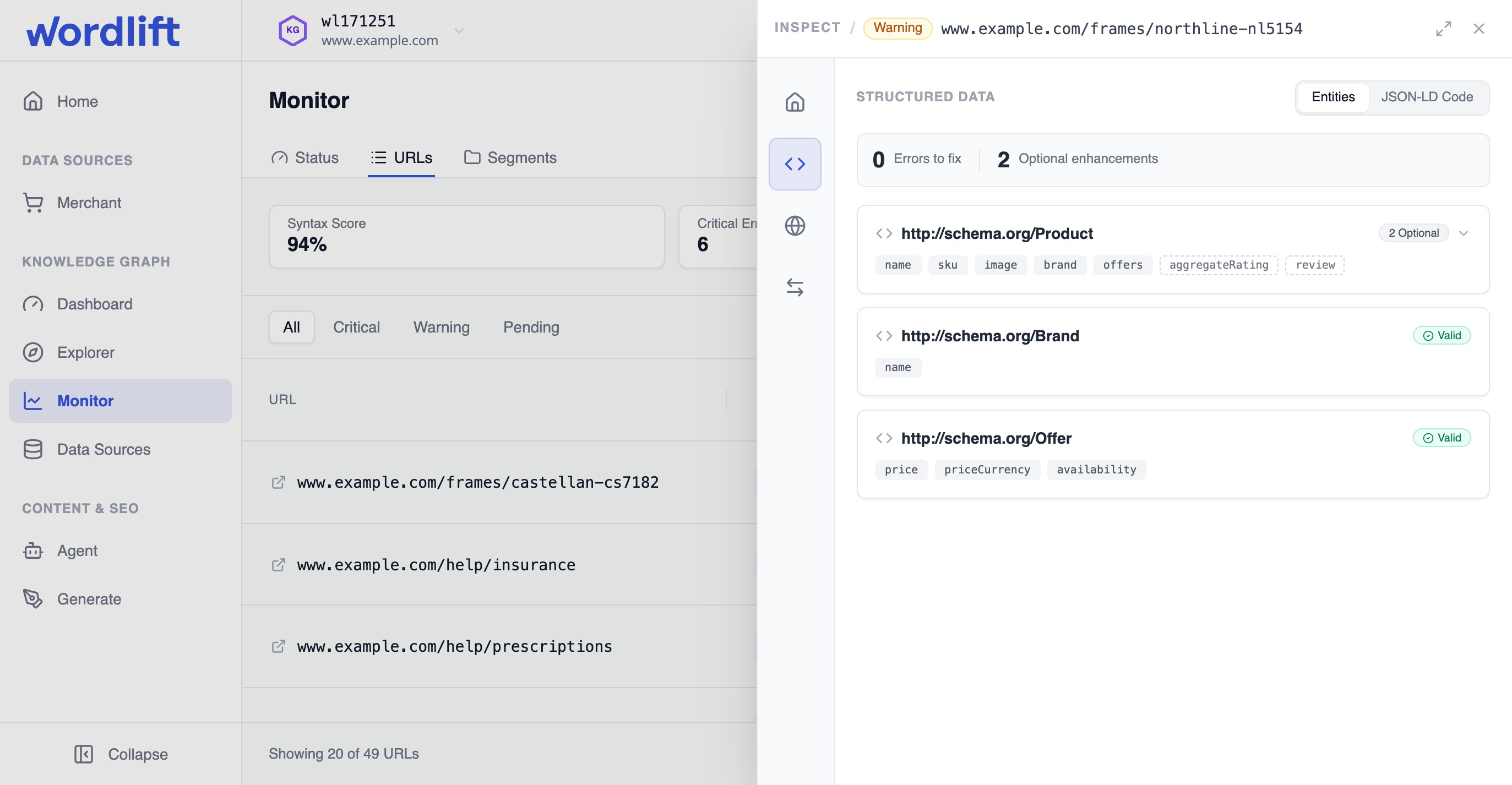
Entities shows the structured data found on the page, as a card per entity type with a valid or warning badge and the detected properties. Use it to confirm that the JSON-LD on the page is valid.
-
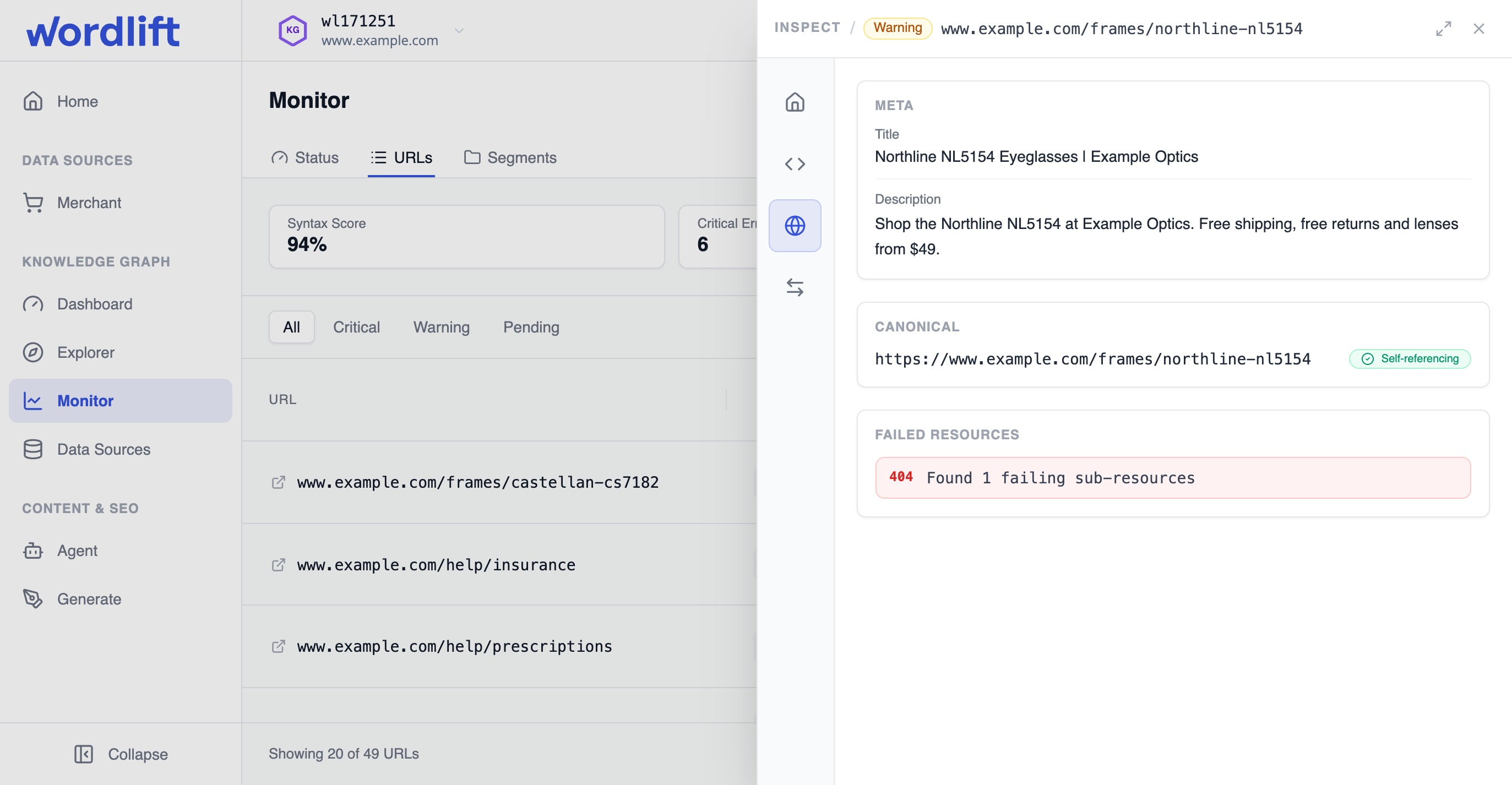
Page shows the meta title and description, the canonical URL, and any resources that failed to load.
-
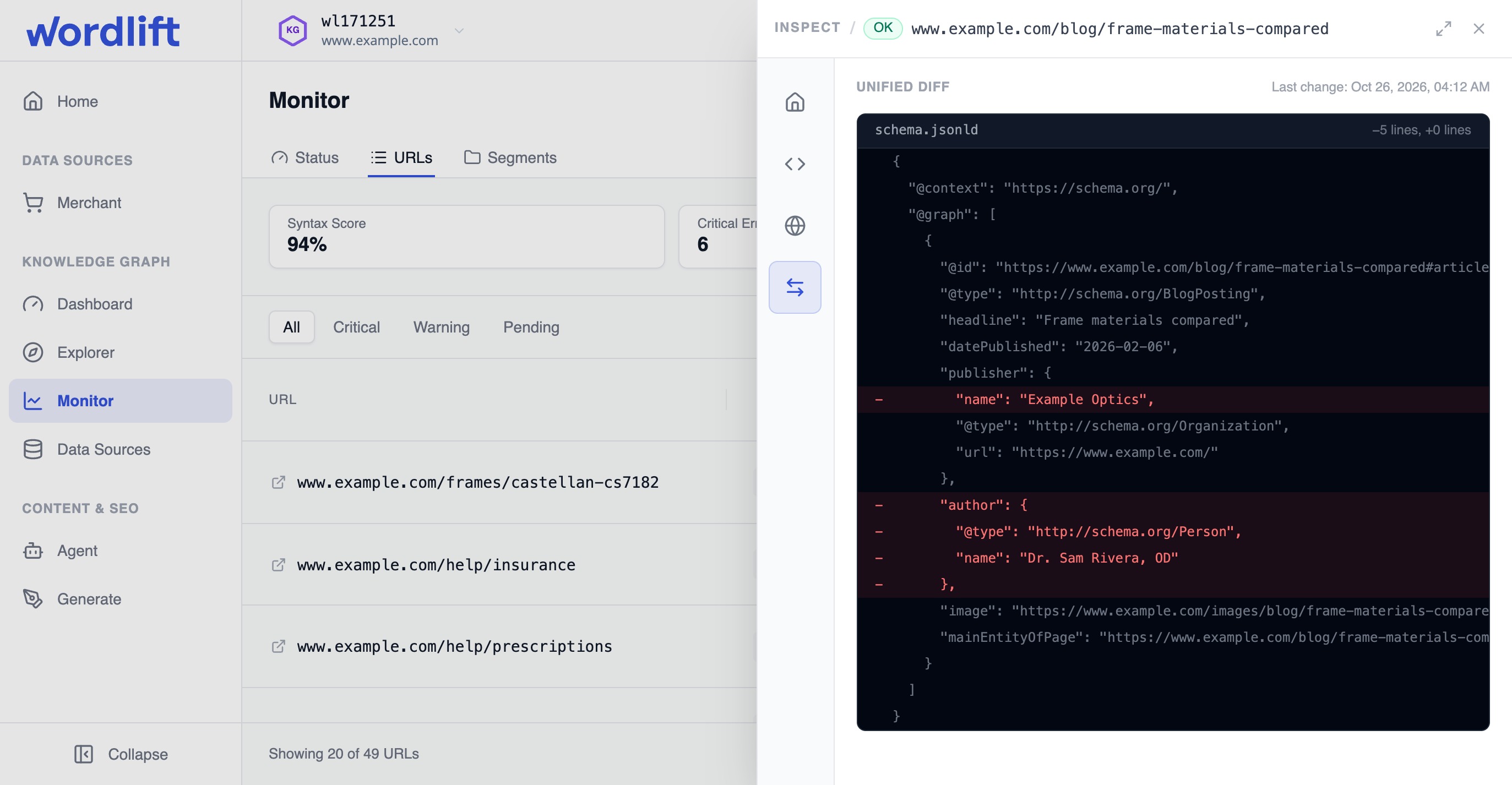
Diff compares the JSON-LD on the page with the JSON-LD that the WordLift Data API serves for it. Use it to confirm that the page shows the markup you expect.
-
Result
For each page, you know which expectations and checks fail and what structured data the page serves. You also see how it differs from what the Data API serves.
Monitor reports issues but doesn't fix them. Use the findings to update your templates, your Knowledge Graph or your WordLift setup, then check the page again after the next run.
Next steps
- Read Monitor status to see how a fix changes your scores.
- Monitoring API Guide to read the same results for a URL from your own code.
- To add or remove pages from the list, contact your WordLift account team.